File Listener
Description
The File Listener is an Inbound channel which regularly searches for new files in a particular directory.
Whenever a file in the observed directory is found whose file name matches the search pattern, the file is read and its content is returned as content of a Message.
For each recognized file a start event is created containing the name of the file and its content message.
Normally also the recognized file is renamed, deleted or moved to another directory to avoid that it is processed a second time.
Creation
To create a File Listener follow the steps described in the general description of Adapters
Configuration
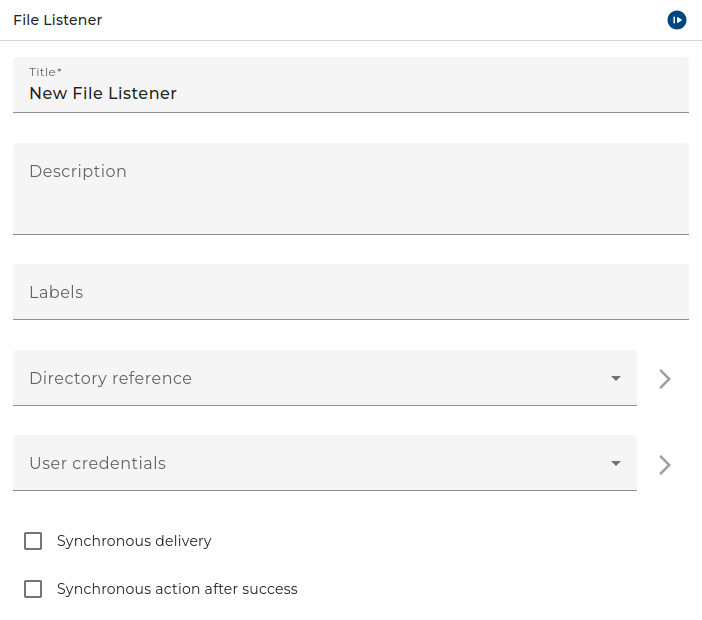
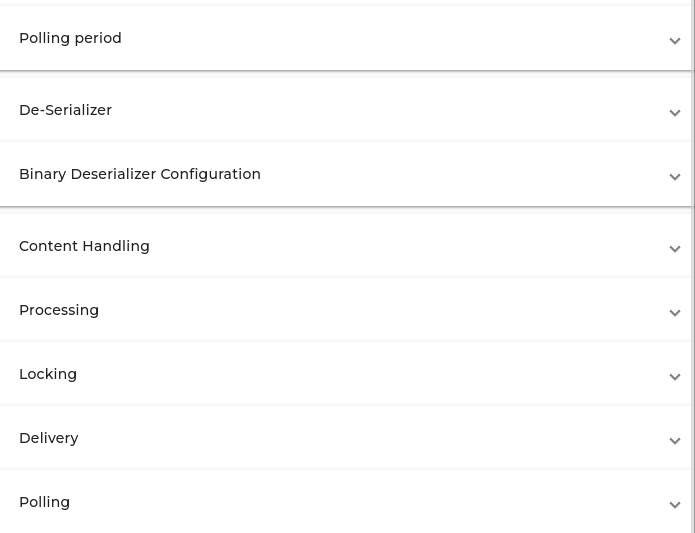
The dialog to configure the File Listener looks like:
Step by Step
-
Directory Most important the user has to select the directory which is observed for new files
-
Authentication If the directory is a network directory probably Orchestra has to authenticate itself. In this case the user has to select an appropriate User credential
-
Mode There are two modes immediate processing and single processing
-
In Mode immediate processing the channel parses the directory for files matching the Name pattern, then deserializes the file content and sends a signal to the processing engine for each of the files. The channel does not wait for the processingof the file data.
-
In Mode single processing the channel sets a lock file in the directory before processing a file. This lock is released when the process instance is finished. The channel waits until the lock is released before processing the next file. So effectively the files are processed one after another.
-
Synchronous timeout In synchronous mode after this time span the lock file is automatically released. If the configured value is lower than one second, then a default value is used which is the value of the parameter named file.freeLocksAfter in the group A dapter of the Environment settings. Its default value is 5 minutes.
-
Name pattern Normally only specific files are to be searched. Therefore, the user has to declare afile name pattern here. Depending on the state of Simple pattern the value of this field is interpreted in a different way.
-
Simple pattern: The filenames have to match exactly the characters you specified in this field. You may use an asterisk character to match any number of characters. E.g. the pattern *.xml will match any file having the suffix xmlwhile *message* will match any filename containing the string message .
-
Regular expressions: If Simple pattern is not checked the content of this field is interpreted as regular expression. Any file with matching filename will be included.
-
Additional filter: This opens a dialog which let you implement a filter condition for files written in Java.
-
Polling period Typically the channel searches its source for available data periodically:
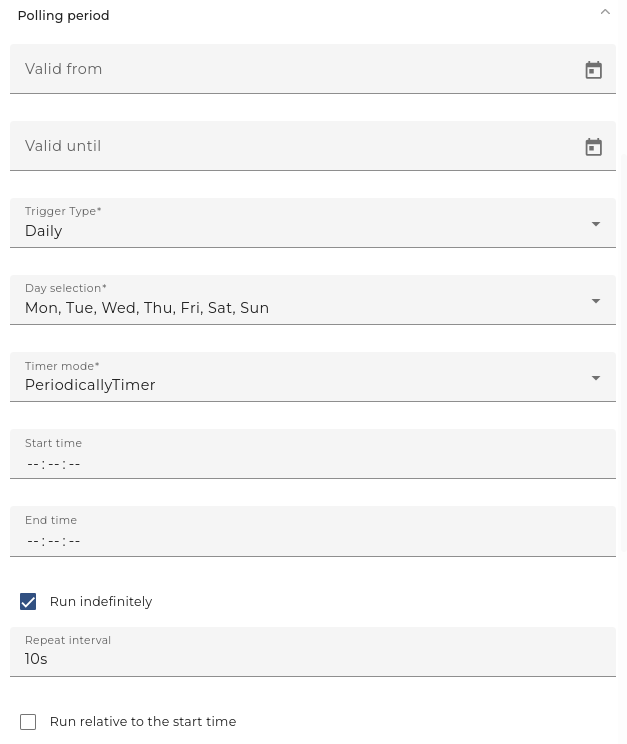
To change the intervals at which the channel searches its data, the user clicks on the button labeled with three dots and then can edit the timer properties.
There are two types of timers, periodical timers and absolute timers. Both are configured using the same dialog. In most cases a periodical timer is used which regularly creates a signal.
-
Description for the timer, e.g. polling timer
-
Valid from/to Here the user can state a time span where the timer is valid. Outside of this time span, the timer is invalid and doesn't create events.
-
Mode This Option is only sensible if the timer dialog is used to configure a timer event. In the context of channels it is disabled.
-
Trigger type The user may restrict the timer to work only at certain days:
-
Daily Here the user may restrict the timer to fire events on certain days of the week
-
Monthly Here the user may restrict the timer to fire events at a particular day of the month
-
Absolute If an absolute timer is configured, the user must enter a fixed time at which the timer raises an event. E.g. one could declare the timer to run every day at 6:00 in the morning.
-
Periodically If a Periodical timer is used the user has to configure the following properties:
-
Start/End time A time span of the day when the timer shall be active
-
Repeat count Here the user may restrict the timer to fire only a certain amount of events after start. E.g. one could declare the timer to start at 6:00 AM a fire exactly 2 times. The standard value is infinite, that means there is no restriction.
-
Repeat interval the time interval after which an event is fired periodically.
-
Work suffix whenever the channel recognizes a file it is renamed by adding the work suffix
-
Deserializer Here the user may select and configure a Deserializer used to parse the message and create a message from its content. Along with this one or more Stream filters may be added and configured.
-
Splitter used in rare cases to split up the content of the file input into peaces which independently are transformed to a message. When using a splitter the channel returns a Message listinstead of a Message.
-
Start error process he channels encounters an error you can connect it in the process model with an error start event to create a process instance handling that error.
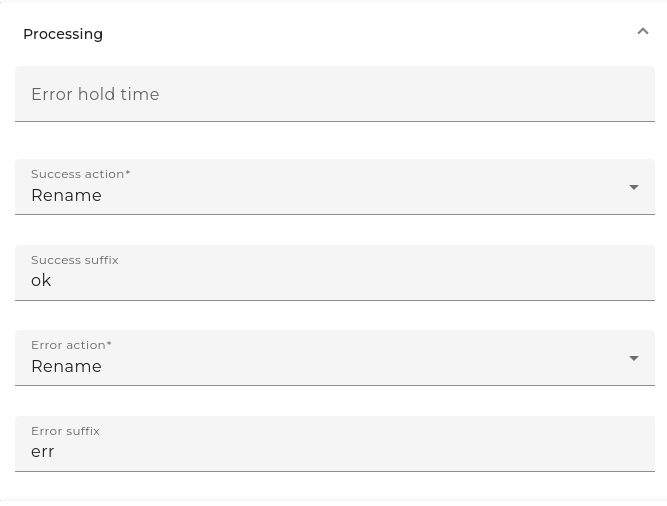
If the user sets the checkbox Always then every time an error occurs an according process instance will be created. If that error occurs regularly because of a short polling period the user may want to avoid creating a lot amount of process instances. In this case you must not set Always but enter a period of time. If after an error further errors occur within that period no further error process will be created.
- Processing When the field "Error hold time" is not configured, every time an error occurs, an according process instance will be created.
|  |
|
-
Lock Method To avoid that the file content is written or otherwise changed by another program the user can select and configure a File locking method here.
-
Success and Failure actions After the file name was readit should be renamed, deleted or moved to another place to ensure that it is not processed a second time.
The user may select an action to be performed when the file could be processed successfully (Success action) and another action to be performed if in the course of file processing an error occurred (Failure action)
In each case there are four possibilities:
-
Rename the file by adding a certain extension to its name.
-
Move the file to another directory
-
Delete the file
-
Move & rename the file
For the Failure action the user may also decide to nothing (No action)
Caveat: This causes the file to be processed infinitely as long as it exists!
Note that in case of Rename and Move & rename the extension text may also contain parameter references which are replaced at runtime. These references have the form $(parameter). When they are evaluated at runtime each parameter is replaced by a string value.
The following parameters are supported:
- $(ctrl:counter) replaced by a unique identifier
- $(dt:
date/time format) Replaced by a date/time string. the date/time format is defined by the simpledateformat of java.
| Letter | Date or Time Component |
|---|---|
| y | Year |
| M | Month in year |
| w | Week in year |
| W | Week in month |
| D | Day in year |
| d | Day in month |
| F | Day of week in month |
| E | Day in week |
| a | Am/pm marker |
| H | Hour in day (0-23) |
| k | Hour in day (1-24) |
| K | Hour in am/pm (0-11) |
| h | Hour in am/pm (1-12) |
| m | Minute in hour |
| s | Second in minute |
| S | Millisecond |
| z | General time zone.g. GMT-08:00 |
| Z | RFC 822 time zone e.g.-0800 |
-
$(context:scenario_name) replaced by the scenario name as displayed in the monitor or designer (normally, scenario directory name).
-
$(context:scenario_id) replaced by the unique scenario id (as required by various customer API functions)
-
$(context:channel_name) is synonymous to $(context:owner_name) above, but might be more intuitive in the channel context
-
Delivery Here the user may change the order in which the recognized files are read. This is rarely used but may be necessary if the associated process model works in FiFo mode and the files must be processed in a defined order.
Testing the channel
You may test the File listener like every other inbound channel.
How Orchestra works
-
If the checkbox "Rename workfiles on startup" is selected and Orchestra crashed somehow, Orchestra renames all files with work suffixes when it restarts.
-
If you defined a work suffix, then Orchestra first renames the file to "
oldFilename.oldSuffix.workSuffix". -
If a lock method is defined, in the next step Orchestra locks the file.
-
Now Orchestra opens the file in an input stream.
-
Then the file is transformed into the message.
-
If the file was locked, the lock now will be removed.
-
Depending on the defined post-processing action, the following steps can happen now:
- If the file was renamed before, the work suffix is deleted and if the processing was successful and a success suffix is given or the processing failed and an error suffix is given, the corresponding suffix will be added to the file name. All this happens in one step.
- If the file was renamed before, the work suffix is deleted and if it is defined to move the file, the file will be moved now.
- If the file was renamed before, the work suffix is deleted. In this case a new suffix is defined and the file should be moved. Orchestra then creates an entry with the new file name in the target directory and then moves the file to this entry.
- If the file should be deleted, this happens now.
Throttling
This channel is supported by throttling limit feature that described in chapter Throttling designer.
See also
A user can be created like described here.
You also may use the channels Filename Listener and File Reader to listen a read for the content of a file.